Before the Skip: A 90-Minute Data Exit Plan for Old Phones and Laptops in Hull

Photo: Fabian Irsara firsara, CC0, via Wikimedia Commons
There is a moment in every Hull household when a drawer finally gives up: an old phone, a laptop with a sticky key, a tablet with a cracked corner. The temptation is to bag it and drop it at the tip. The problem is that old tech is rarely empty. It holds photos, saved passwords, email, bank apps, work files, and enough account crumbs for a stranger to cause trouble.
This plan is deliberately short. Set aside 90 minutes, make a brew, and work through it in order. You do not need to be technical. You do need to be nosy about what is actually on the device.
0–10 minutes: make a list, not a pile
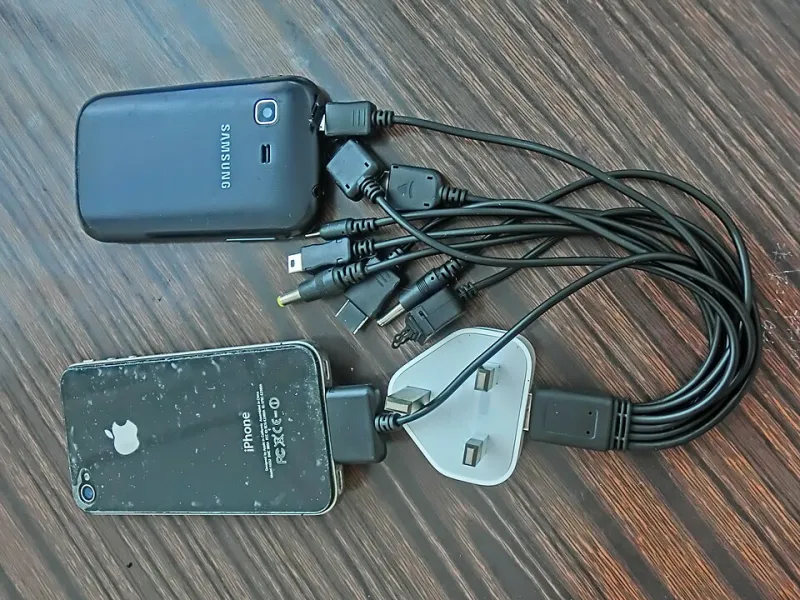
Gather the devices, chargers, and cables. Write down what each one is for: personal phone, work laptop, family tablet, old backup phone. Note which accounts are signed in — Google, Apple, Microsoft, email, banking, work systems, password manager, authenticator apps. If you run a small business, list any client files, invoices, or shared drives that live on the machine. This list is your checklist. Do not wipe anything until you have ticked it off.
10–35 minutes: start the cloud backup first
Cloud backups are convenient, but they are not magic. Check what is actually included. Google Photos may back up photos but not WhatsApp chats. iCloud may back up app data but not every document. OneDrive may sync a folder but not your desktop if you have moved things around.
Start the big upload first, especially if you are on a slower connection in the HU postcodes. Photos and video take time. Plug the device in, connect to Wi-Fi, and leave it alone. If you are moving from Android to iPhone or the other way, do not assume the new phone will pull everything across. Check the migration app and give it the same quiet time.
35–55 minutes: make a local copy you can see
Cloud is not a backup if you cannot see the files. Copy the important folders to a computer or an external drive: photos, documents, desktop, downloads, work files, tax records, and anything labelled 'final'. For phones, copy the DCIM folder and any downloaded files. If there is an SD card, copy it too — and then remove it before wiping.
Use 'copy', not 'move'. A move can leave you with a half-finished transfer and no second copy. Once the copy has finished, open three random files from three different folders. If a photo opens and a document is not blank, you are in decent shape. If the drive is making clicking noises, stop and get help before it dies completely.
55–70 minutes: check the awkward stuff
This is where most people get caught. WhatsApp does not always travel with a normal phone backup; use its own chat transfer or export. Authenticator apps need to be moved or you will lock yourself out of accounts. Banking apps often need re-registration on the new device. eSIMs need to be transferred or replaced by your network. Old contacts may live on the SIM card. Hidden photo folders, downloaded email attachments, and browser bookmarks are easy to miss.
Small businesses should check shared drives, email archives, and any local database or accounts package. If client data is involved, treat the wipe as seriously as you would a paper shredder. Keep a record of what was wiped and when.
70–85 minutes: sign out, unlock, wipe
Before you factory reset, sign out of the accounts that can lock the device: Apple ID and Find My iPhone, Google account and Find My Device, Microsoft account, and any work profile. Turn off activation lock. Remove the SIM and SD card. Then use the device's own reset option — 'Erase All Content and Settings' on a phone, or a clean factory reset on a laptop.
A quick format is not a secure wipe. If you are passing a laptop to a stranger, use the manufacturer's reset with a clean install, or ask a local repair shop to wipe the drive properly. If the drive is failing, physical destruction is safer than hoping. For phones, a proper factory reset after signing out is usually enough for normal household recycling, but business devices deserve a wipe confirmation.
85–90 minutes: recycle or pass on locally
Working phones can go to a charity shop, a trade-in scheme, or a local repair shop that refurbishes them. Broken tech should go to a household waste recycling centre that accepts small electricals, not the general bin. Laptops and phones contain useful materials, but they also contain batteries that should not be crushed in a bin lorry.
Before the bag leaves the house, do one last check: no SIM, no SD card, no signed-in account, no saved passwords in a browser, no work email. Then label the charger and cable if you are passing them on. The 90 minutes is not glamorous, but it is a lot cheaper than a data breach or a lost photo album.